As we all know QT is one C++ application development framework. It is popular for some software developers because it supports
full GUI picture library
, and
its control’s styles and layouts
can be set directly through each “control” property. That is, no need to write so many codes. And especially for machine vision program that needs HMI operation, the operation interface development
becomes easier due to QT strong design function.
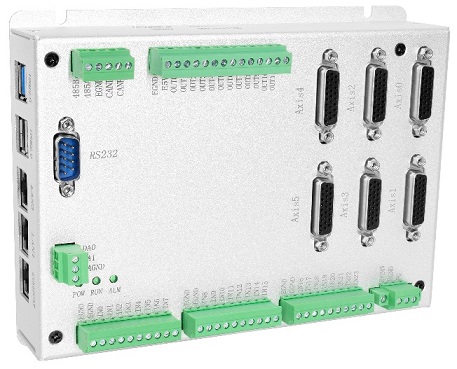
Then, Zmotion VPLC series machine vision motion controllers has LINUX system, it can match with QT to call Zmotion C++ dynamic library that encapsulates Zmotion RTBasic commands. What’s more use Zmotion own IDE software “RTSys” to write called subprograms, you can watch running situation and debug the program at the same time. You can download RTSys and simulate it. Please check with RTSys user manual, RTBasic Programming Manual, and routines together.
Here, Zmotion will use VPLC532E vision motion controller to capture graphic through QT and RTBasic. That is:
in RTSys, write RTBasic s
ubp
rograms and encapsulate as C++ library file.
in QT, call C++ commands to execute RTBasic contents
You also can learn from the corresponding video:
Hardware |
Device |
Number |
Device |
Number |
VPLC532 vision motion controller |
1 |
Camera |
1 |
24V power supply |
1 |
Lens |
1 |
Ethernet cable |
2 |
Cables |
Several |
Software |
RTSys + QTCreator
RTBasic C++ DLL File
RTBasic Image Acquisition Program File
“for program files, please contact us”. 
|
Step 1: Build New QT Project
Open QTCreator software
→
click “New Project”
→
select “Application”
→
select “QT Widgets Application”
→
click “Choose…”
→
enter project name (here, name it as ZVision_QT_1)
→
select the storage path
→
click Next until “finish”.
Step 2: Add Library File
Download corresponding library file
→
put them under project folder
→
left-click project name, and right-click to select “add current file”
→
add
“zaux.h” “zmotion.h” “zaux.cpp” files
→
double click “.pro” file, and manually add the dynamical linking library code “win32: LIBS += -L$$PWD/ -lzmotion”
→
define head files in “mainwindowcpp” file, that is, add #include “zmotion.h” and #include “zaux.h”.

Step 3: Define Global Variables
In mainwindowcpp file, define global variables that will be used.
ZMC_HANDLE g_handle;       //controller handle
int Times=0;
uint8 zv0_pBuff[400*300*2]={0}; //latch 0 buffer size
int ContinuousGetImgFlag=0;   //flag of continuous acquisition
Step 4: Deign UI Interface
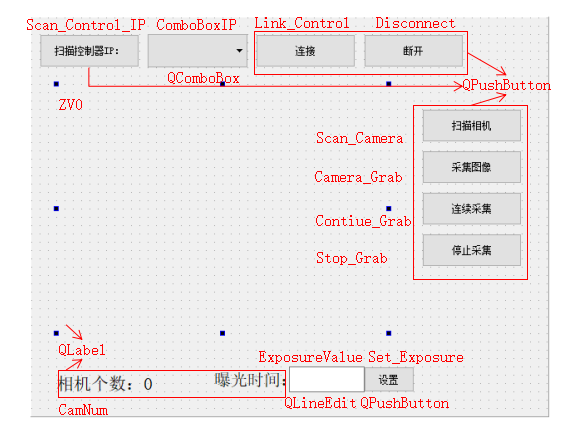
Step 5: Add Interface Initialization Codes
MainWindow::MainWindow(QWidget *parent) :
QMainWindow(parent),
ui(new Ui::MainWindow)
{
ui->setupUi(this);
ui->ZV0->setText("");           //clear font
ui->ZV0->setStyleSheet("QLabel{background-color:rgb(0, 0, 100);}");  //set format list
ui->ExposureValue->setText("5000");
}
Step 6: Write Codes for HMI Button
A.
Add Slot Function Codes
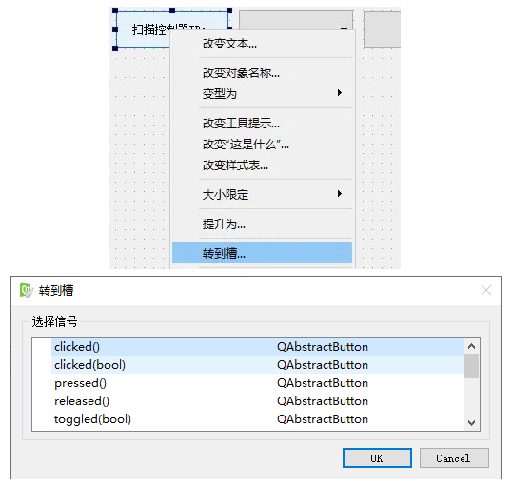
For example, select [scan controller IP] button, and right click to select
“go to slot”
→
select “clcked()” signal source in the slot window
→
click OK, then you can complete slot function’s definition and statement
→
add specific codes.
//scan controller IP
void MainWindow::on_Scan_Control_IP_clicked()
{
char buffer[
10240];
int32 iresult;
const
char *ipaddress;
iresult = ZMC_SearchEth(buffer,
10230,
100);

//scan controller IP, return error message
if(ERR_OK != iresult)
{
return ;
//error

//segment all scanned IP, and show them in the list
int ipos =
0
const
char * pstring;
pstring = buffer;
for(
int j=
0; j<
100;j++)
//max 100
{
char buffer2[
256];
buffer2[
0] =
'\0';
while(
' ' == pstring[
0])
{
pstring++;
}
ipos =
sscanf(pstring ,
"%s", &buffer2);
if(EOF == ipos)
{
break;
}

//jump the string
while((
' ' != pstring[
0]) && (
'\t' != pstring[
0]) && (
'\0' != pstring[
0]))
{
pstring++;
}
if(
0 ==
strcmp(buffer2, ipaddress))
{
return ;
}
ui->ComboBoxIP->addItem(buffer2);
}
}
For other buttons,
[connect], [disconnect], [scan camera], [collect img], [keep collect], [stop collect], [set]
, they are with same methods, and you can contact us for specific codes.
Add
ZV0_Show() definition and statement. It can show the graphic with Qt acceptable format.
C.
Add Timer Refresh Function
In “mainwindow.h” file, add the type library that includes QTimer
→
define “QTimer UpZV_0” timer variable
→
add timer trigger condition, signal, and slot connection function in initialization
→
add timer graphic acquisition definition and statement
→
write specific codes.
#include
#include
void ZV0_Show();
void UpZV_0show();

private:
Ui::MainWindow *ui;
QPixmap fPixmap;
QTimer UpZV_0;
MainWindow::MainWindow(QWidget *
parent) :
QMainWindow(
parent)
ui(
new Ui::MainWindow)
{
ui->setupUi(this);
ui->ZV0->setText(
"");
//clear font

ui->ZV0->setStyleSheet(
"QLabel{background-color:rgb(0, 0, 100);}");
//set format list

ui->ExposureValue->setText(
“5000");
UpZV_0.start(
20);
//each 200ms, refresh the graphic and show it
connect(&UpZV_0, SIGNAL(timeout()), this, SLOT(UpZV_0show()));
}
//open continuous acquisition with the timer
void MainWindow::UpZV_0show()
{
if(
1 == ContinuousGetImgFlag)
{
ZV0_Show();
}
}
Step 7: Run & Operate QT Progra
a.
conduct power for controller.
b.
connect controller to PC by Ethernet.
c.
conduct power for camera, and connect to controller.
d.
open RTSys
software, open RTBasic graphic acquisition project
e.
download
it into controller
f.
run
QT program
g.
click “scan controller IP”, and click “connect” when correct IP is shown
h.
you can do collecting now
: collect means capture the graphic once, keep collect means capture the graphic in cycle by configured timer.