C# Routine
Introduction & Operation
Here, Zmotion makes one C# routine that mainly shows electronic cam function.
(1)
C# Commands of Electronic Cam
ZAux_Direct_Cam (handle, iaxis, istartpoint, iendpoint, ftablemulti, fDistance) |
handle |
Connection handle |
iaxis |
Axis No. |
istartpoint |
Starting point’s TABLE No., which saves the first point position |
iendpoint |
End point’s TABLE No. |
ftablemulti |
Multiple the position and this ratio, generally it is the pulse amount |
fDistance |
Reference motion’s distance, used to calculate motion total time |
|
ZAux_Direct_SetTable (handle, tablestart, numes, pfValue) |
handle |
Connection handle |
tablestart |
TABLE starting No. |
numes |
The number of writing |
pfValue |
Data list |
Description:
TABLE is one oversize array of Zmotion controllers, the data type is 32-bit floating (for ZMC4XX above: 64-bit floating). It doesn’t support storage when power off. |
|
For details, please refer to Zmotion PC Programming Manual.
Download Add.:
https://www.zmotionglobal.com/download_list_17.html
Contact Us:
https://www.zmotionglobal.com/contactus.html
Including the C# library file. How to call the PC library file, please review lesson 2. |
Save data into TABLE
→
use ZAux_Direct_Cam() command to move axis according to TABLE data
Note:
two / several ZAux_Direc_Cam commands can use the same TABLE data area at the same time.
*TABLE data*
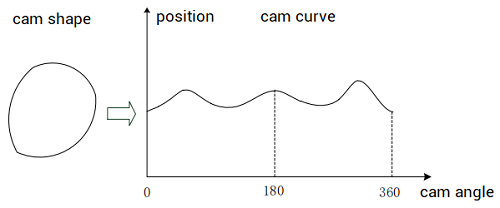
TABLE data corresponds to motion trajectory position, which is absolute position related to motion starting point.
You need to set it manually. The first data is the guidance point, 0 is recommended.
*motion total time*
It is determined by speed and the parameter
“fDistance”.
*motion real speed*
It is matched automatically according to TABLE trajectory and the time.
*pulses*
Sent pulses = TABLE data * ratio of ftablemulti
Please ensure
that the distance parameter * units passed in the command is an
integer number of pulses, otherwise floating numbers will cause slight errors in the movement.
(1)
C# Program of Electronic Cam
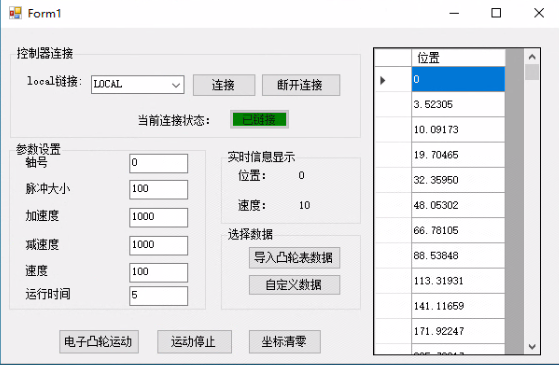
A. UI Designment
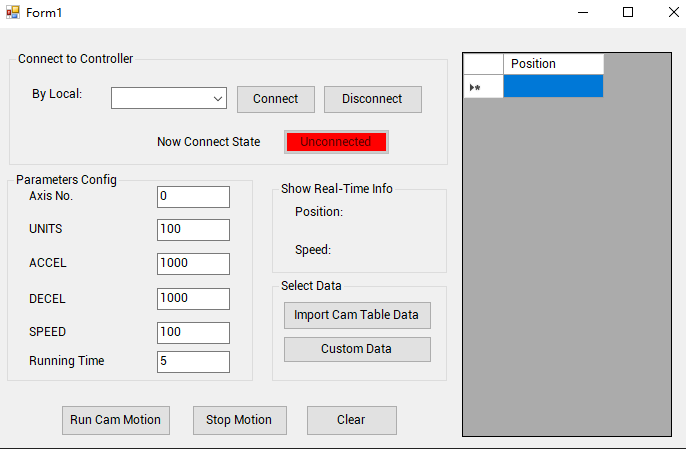
You can
import corresponding cam table data / set customized data as needed.
This C# routine includes both two methods.
Step 1: connect
In Form1, call the interface “
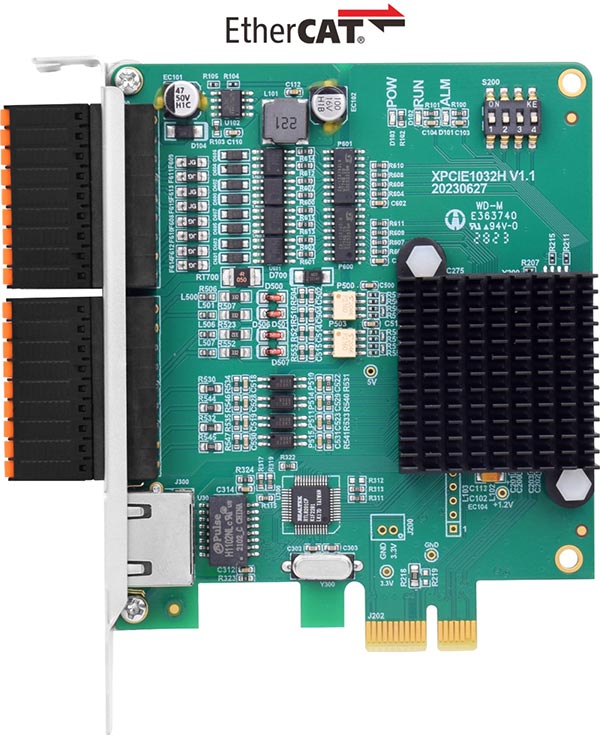
ZAux_FastOpen()” to connect to XPCIE1032H automatically while system is initializing.
private void button1_Click(object sender, EventArgs e)
{

    zmcaux.ZAux_FastOpen(5, "LOCAL", 1000, out g_handle);
    if (g_handle != (IntPtr)0)
    {
        timer1.Enabled = true;
        //set connection state button
        status.BackColor = System.Drawing.Color.Green;
        status.Text = "Connected";
    }
    else
    {
        MessageBox.Show("Controller Connect Failed, Please Check MotionRT7, It Should Start!", "Warn");
        //set connection state button
        status.BackColor = System.Drawing.Color.Red;
        status.Text = "Disconnect";
    }
}
Step 2: update parameters by timer.
//timer
private void timer1_Tick(object sender, EventArgs e)
{
    if(g_handle != null)
    {
        float dpos = 0, speed = 0;
        zmcaux.ZAux_Direct_GetDpos(g_handle, Convert.ToInt32(textBox_axis.Text),ref dpos);
        label_dpos.Text = Convert.ToString(dpos);
        zmcaux.ZAux_Direct_GetSpeed(g_handle, Convert.ToInt32(textBox_axis.Text), ref speed);
        label_speed.Text = Convert.ToString(speed);
    }
    else
    {
        status.BackColor = System.Drawing.Color.Red;
        status.Text = "Disconnect";
    }
}
Step 3: use cam command to do cam motion through loaded cam table data.
private void button3_Click(object sender, EventArgs e)
{
    if (g_handle == null)
        return;
    zmcaux.ZAux_Direct_SetUnits(g_handle, Convert.ToInt32(textBox_axis.Text),Convert.ToSingle(textBox_unit.Text));
    zmcaux.ZAux_Direct_SetSpeed(g_handle, Convert.ToInt32(textBox_axis.Text), Convert.ToSingle(textBox_speed.Text));
    zmcaux.ZAux_Direct_SetAccel(g_handle, Convert.ToInt32(textBox_axis.Text), Convert.ToSingle(textBox_accel.Text));
    zmcaux.ZAux_Direct_SetDecel(g_handle, Convert.ToInt32(textBox_axis.Text), Convert.ToSingle(textBox_decel.Text));
    zmcaux.ZAux_Direct_SetAtype(g_handle, Convert.ToInt32(textBox_axis.Text), 1);
    //do electronic cam motion
    //set motion total time as 5s
    zmcaux.ZAux_Direct_Cam(g_handle, Convert.ToInt32(textBox_axis.Text),0, CamNum, Convert.ToSingle(textBox_unit.Text), Convert.ToSingle(textBox_speed.Text)*5);
Step 4: load the cam table data that is from outside.
private void button_data_Click(object sender, EventArgs e)
{
    dataGridView_data.Columns.Clear();
    DataGridViewTextBoxColumn ActPos = new DataGridViewTextBoxColumn();
    ActPos.Name = "ActPos";
    ActPos.DataPropertyName = "ActPos";
    ActPos.HeaderText = "Position";
    dataGridView_data.Columns.Add(ActPos);
    OpenFileDialog ZaoLangFile = new OpenFileDialog();
    ZaoLangFile.Filter = "Text File(*.txt;)| *.txt;| All Files| *.*; ";
    ZaoLangFile.ValidateNames = true;
    ZaoLangFile.CheckPathExists = true;
    ZaoLangFile.CheckFileExists = true;
    if (ZaoLangFile.ShowDialog() == DialogResult.OK)
    {
        string strFileName = ZaoLangFile.FileName;
        //other codes
        //FileStream FileRead = new FileStream(strFileName, FileMode.OpenOrCreate, FileAccess.Read);
        string DataTest = File.ReadAllText(strFileName);
        string[] strArray = DataTest.Split(new string[] { "\r\n" }, StringSplitOptions.None);
        for (int i = 0; i < strArray.Length - 1; i++)
        {
            int index = dataGridView_data.Rows.Add();
            dataGridView_data.Rows[index].Cells[0].Value = strArray[i];
        }
        float[] Tablelist = new float[strArray.Length];
        for (int i = 0; i < strArray.Length - 1; i++)
        {
            Tablelist[i] = Convert.ToSingle(strArray[i]);
        }
        zmcaux.ZAux_Direct_SetTable(g_handle,0,strArray.Length,Tablelist);
        //record how many data that are written now
        CamNum = strArray.Length - 2;
    }
}
Step 5: load the customized cam table data.
private void button6_Click(object sender, EventArgs e)
{
    dataGridView_data.Columns.Clear();
    DataGridViewTextBoxColumn ActPos = new DataGridViewTextBoxColumn();
    ActPos.Name = "ActPos";
    ActPos.DataPropertyName = "ActPos";
    ActPos.HeaderText = "Position";
    dataGridView_data.Columns.Add(ActPos);

    float[] CustomTable = new float[100];
    for (int i = 0; i < 100; i++)
    {
        CustomTable[i] = (float )((Math.Sin(Math.PI*2*i/100) / (Math.PI*2)) + i / 100) * 500;
        int index = dataGridView_data.Rows.Add();
        dataGridView_data.Rows[index].Cells[0].Value = CustomTable[i];
    }
    zmcaux.ZAux_Direct_SetTable(g_handle, 0, 100, CustomTable);
    CamNum = 100;
}
For full C# project, please contact us.
(2)
C# Program Electronic Cam Operation & Effect
--motion 1--
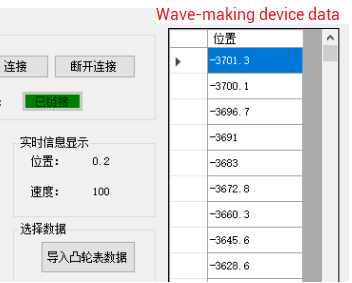
This is one wave-making equipment.
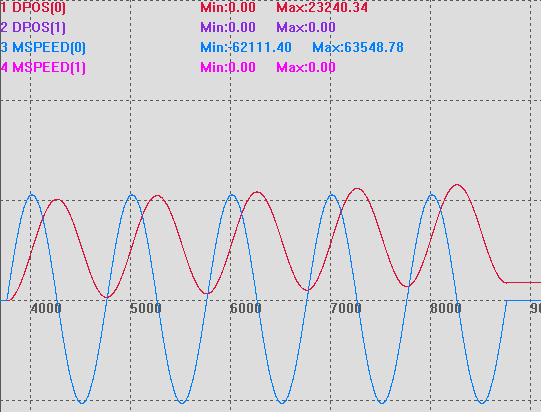
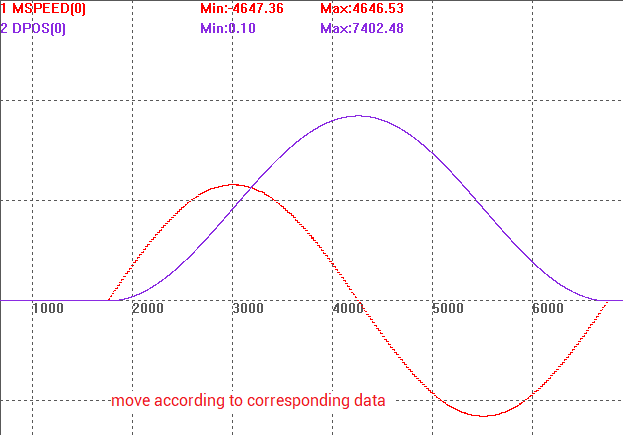
Import one certain trajectory data into cam table, and load data into controller TABLE cam form. It moves the action in specified time.
While it is moving, we use our software RTSys “SCOPE” debugging tool (for details, please check lesson 6).
--motion 2--
We choose one SIN motion that is internal customized data as the motion data.
It can be seen small motion segments are completed in specified time.