C# Routine Introduction &
Codes
A.
C# Routine UI
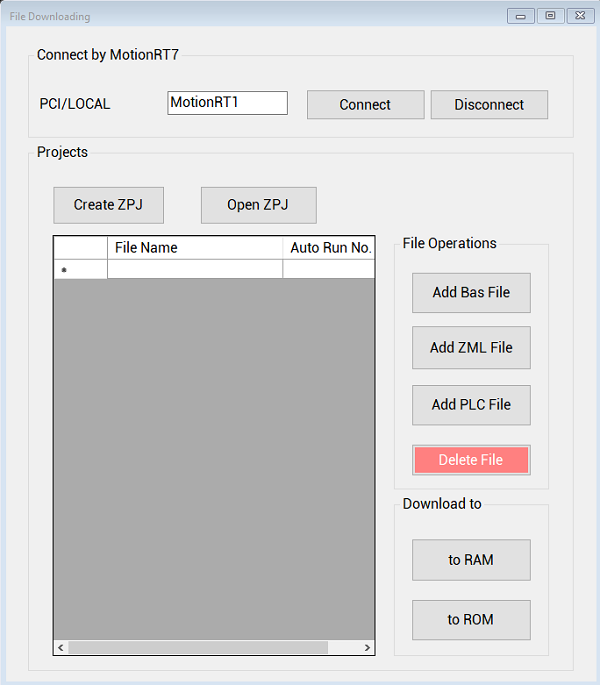
Except connection command ZAux_FastOpen that has been mentioned in above articles, the important related C# instruction is
ZAuz_ZpjDown.
ZAux_ZpjDown (handle, ZpjName, ZarName, pPass, uid, run_mode) |
Generate ZAR file from ZPJ project, then download to run. |
handle |
Connection handle |
ZpjName |
ZPJ project path + file name |
ZarName |
The storage path of generated Zar file |
pPass |
Software password, bind with APP_PASS, when there is no password, pPass=NULL |
uid |
Bound controller unique ID, 0: no controller bound |
run_mode |
Download into ROM / RAM, 0 = ROM, 1 = RAM |
|
For details, please refer to Zmotion PC Programming Manual.
Download Add.: https://www.zmotionglobal.com/download_list_17.html
Contact Us: https://www.zmotionglobal.com/contactus.html
Including the C# library file. How to call the PC library file, please review lesson 2. |
C.
C# Program Introduction & Codes
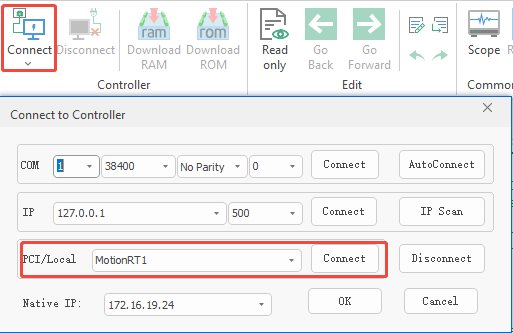
Step 1: click “connect” button to
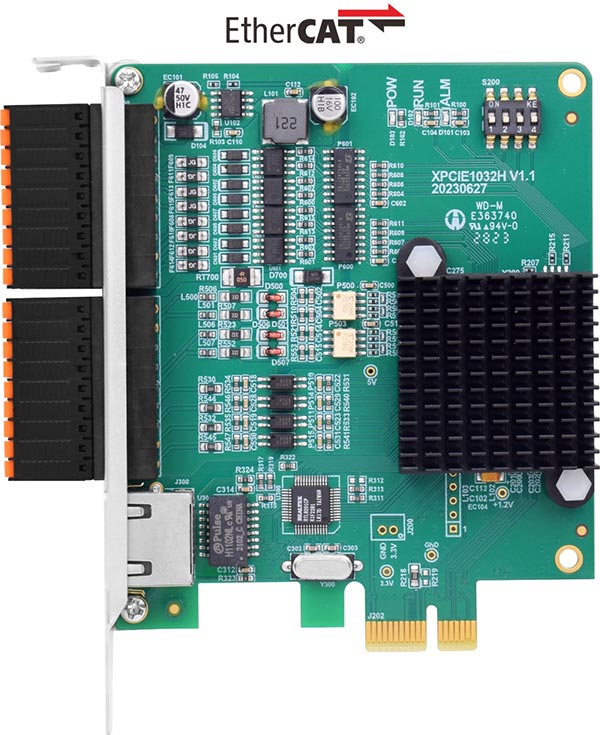
connect XPCIE1032H card to MotionRT7 software kernel.
//connect to controller
private void Btn_cn_Click(object sender, EventArgs e)
{
    int ret;
    //connect to controller
    //ret= zmcaux.ZAux_FastOpen(5,textBox1.Text,100,out g_handle);
    ret = zmcaux.ZAux_OpenEth("127.0.0.1", out g_handle);
    if (g_handle != (IntPtr)0)
    {
        MessageBox.Show("RT7 Link Succeeded!", "Note");
        timer1.Enabled = true;
    }
    else
    {
        MessageBox.Show("RT7 Link Failed!"+"Error Code"+ ret);
    }
}
Step 2:
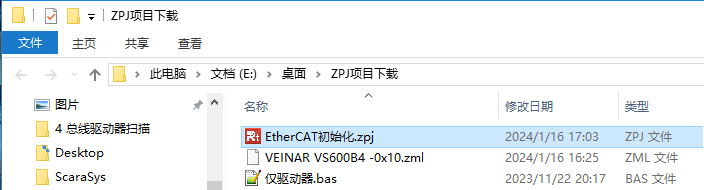
create new ZPJ project file.
//new create one ZPJ file
private void NewZpjFile_Click(object sender, EventArgs e)
{
    try
    {
        //create "save file dialog box"
        SaveFileDialog saveFile = new SaveFileDialog();  //
        saveFile.Filter = "ZMC Project Files(*.zpj)|*.zpj";
        saveFile.OverwritePrompt = true;  //whether to cover current file
        //if set it as true, system default content will be used
        saveFile.RestoreDirectory = true;  //restore content
        //if "save file diaglo box" succeeded, then:
        if (saveFile.ShowDialog() == DialogResult.OK)
        {
            FileStream fs1 =new FileStream(saveFile.FileName, FileMode.Create, FileAccess.ReadWrite);

            fs1.Close();
            //ZPJ file name
            m_ZpjFileName = saveFile.FileName;
            //ZPJ file path
            m_ZpjFilePath = System.IO.Path.GetDirectoryName(m_ZpjFileName); //path
            System.IO.File.Create(m_ZpjFileName).Close();
            Thread.Sleep(100);
            if (!System.IO.File.Exists(m_ZpjFileName))
            {
                MessageBox.Show("File Not Exist");
            }
            Czpj();
        }
        else
        {
            return;
        }

    }
    catch (Exception ex)
    {
        MessageBox.Show(ex.Message);
    }
}
Step 3:
add Bas file into ZPJ project.
//add bas file
private void AddBas_Click(object sender, EventArgs e)
{
     if (!m_ZpjOPenFlag)
    {

        MessageBox.Show("Please Create / Open ZPJ!");
        return;
    }
     //create / open the file dialog box
    OpenFileDialog ofd2 = new OpenFileDialog();
    ofd2.Filter = "ZMC Basic Files (*.bas)|*.bas";
    ofd2.RestoreDirectory = true;
    //if file selection succeeded, then:
    if (ofd2.ShowDialog() == DialogResult.OK)
    {
        string fullname = ofd2.FileName;

        m_ZpjFilePath = System.IO.Path.GetDirectoryName(fullname); //path

        m_SubFileName = System.IO.Path.GetFileName(fullname);  //name

        m_ZpjFile_Info[num].pFileName = m_SubFileName;
        m_ZpjFile_Info[num].nAutoTask = -1;
        m_ZpjFile_Info[num].nFileType= 1;    //.bas file type is 1

        num++;
        SaveZpj();
        ShowFileList();
    }
}
//save ZPJ file
public void SaveZpj()
{
    //open ini file of ZPJ project
    string IniFileName = m_ZpjFilePath + "\\" + m_ZpjFileName;
    var MyIni = new IniFile(IniFileName);

    string LpAppname, Lpkeynum, Lpdata;
    LpAppname = "Controller";
    Lpkeynum = "TypeName ";
    String iFileName = "";
    MyIni.Write("Files", num.ToString(), LpAppname);

    //write FileList
    LpAppname = "FileList";

    //Traversal ZPJ files
    int i =0;
    for (i = 0; i < num; i++)
    {
        if (m_ZpjFile_Info[i].pFileName == "")
        {
            Lpdata = "Empty File!" + m_ZpjFile_Info[i].nAutoTask.ToString();
        }
        //sub-filename (with path)
        iFileName = m_ZpjFilePath + "\\" + m_ZpjFile_Info[i].pFileName;
        if (!System.IO.File.Exists(iFileName))
        {
            Lpdata = "File Not Exist!" + m_ZpjFile_Info[i].pFileName;
            MessageBox.Show(Lpdata);
        }
        //update sub-file ID
        Lpkeynum = "File" + (i + 1);
        Lpdata = m_ZpjFile_Info[i].pFileName;
        MyIni.Write(Lpkeynum, Lpdata, LpAppname);
        //update sub-file type
        Lpkeynum = "FileType" + (i + 1);
        Lpdata = m_ZpjFile_Info[i].nFileType.ToString();
        MyIni.Write(Lpkeynum, Lpdata, LpAppname);
        //update sub-file auto run No.
        Lpkeynum = "AutoRun" + (i + 1);
        Lpdata = m_ZpjFile_Info[i].nAutoTask.ToString();
        MyIni.Write(Lpkeynum, Lpdata, LpAppname);

    }
    //delete extra keys
    Lpkeynum = "File" + (num+1);
    MyIni.DeleteKey(Lpkeynum, LpAppname);
    Lpkeynum = "FileType" + (num + 1);
    MyIni.DeleteKey(Lpkeynum, LpAppname);
    Lpkeynum = "AutoRun" + (num + 1);
MyIni.DeleteKey(Lpkeynum, LpAppname);

    //write OpenList
    LpAppname = "OpenList";
    m_ZpjOPenFlag = true;
}
Step 4:
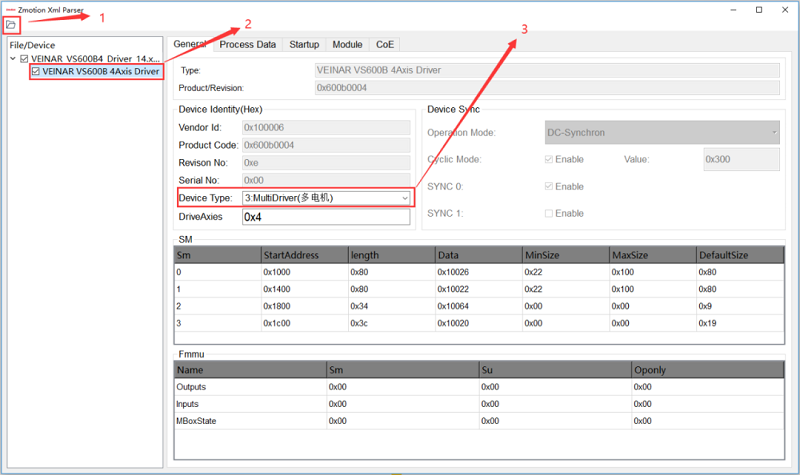
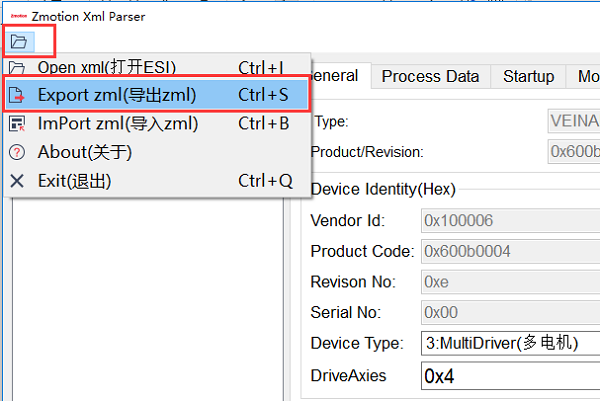
add ZML file into ZPJ project
//add zml file
private void AddZml_Click(object sender, EventArgs e)
{
    if (!m_ZpjOPenFlag)
    {
        MessageBox.Show("Please Create / Open ZPJ!");
        return;
    }
    OpenFileDialog ofd2 = new OpenFileDialog();
    ofd2.Filter = "ZMC ZML Files (*.zml)|*.zml";
    ofd2.RestoreDirectory = true;
    if (ofd2.ShowDialog() == DialogResult.OK)
    {
        string fullname = ofd2.FileName;
        m_ZpjFilePath = System.IO.Path.GetDirectoryName(fullname); //path
        m_SubFileName = System.IO.Path.GetFileName(fullname);  //name
        m_ZpjFile_Info[num].pFileName = m_SubFileName;
        m_ZpjFile_Info[num].nAutoTask = -1;
        m_ZpjFile_Info[num].nFileType = 19;
        num++;
        SaveZpj();
        ShowFileList();
    }
}
Step 5:
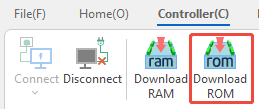
download ZPJ project into card ROM for storage when power-off
//download into rom
private void button9_Click(object sender, EventArgs e)
{
    if (!m_ZpjOPenFlag)
    {
        MessageBox.Show("Please Create / Open ZPJ!");
        return;
    }
    if (g_handle != (IntPtr)0)
    {
        ShowFileListSave();
        SaveZpj();
        String ZpjFileName = m_ZpjFilePath + "\\" + m_ZpjFileName;
        String m_ZarFileName = m_ZpjFilePath + "\\" + "ZmcZpj.Zar";
        //MessageBox.Show(ZpjFileName);
        //MessageBox.Show(m_ZarFileName);
        int iret = zmcaux.ZAux_ZpjDown(g_handle, ZpjFileName, m_ZarFileName, null, 0, 1);
        if (iret != 0)
        {
            MessageBox.Show("Error Code" + iret);
        }
    }
    else
    {
        MessageBox.Show("Controller Unconnected");
    }
}
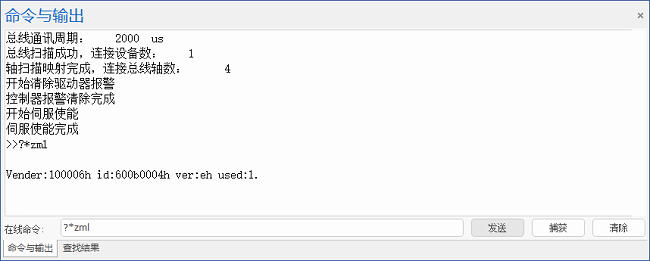
Step 6: in RTSys, check the effect.