Bring Values and Sucesses To Our Customers

Home / Support and services / Technical Support

Technical support

Technical Support

Zmotion EtherCAT PCIE Card XPCIE1032H for You (10) | C# Controller & Drive Homing

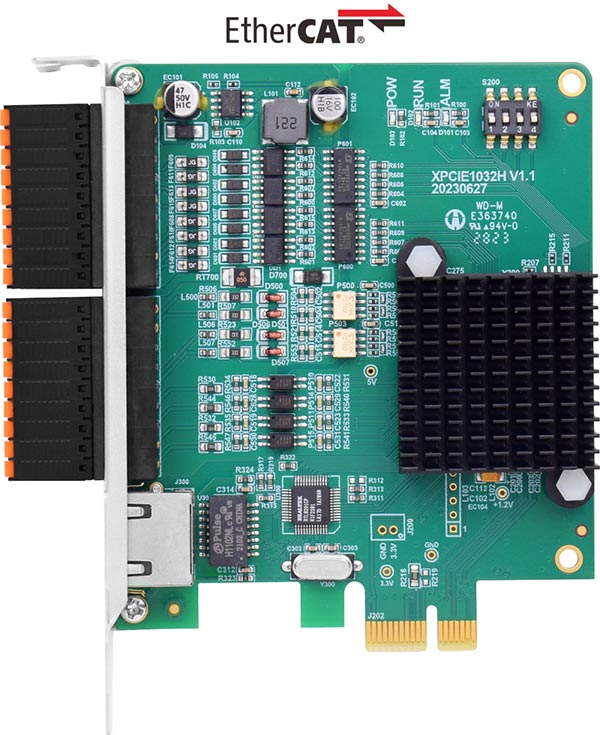
XPCIE1032H is one  EtherCAT PCI Express motion control card developed by Zmotion Technology.

*XPCIE1032H Introduction Video*:  https://youtu.be/B1ktSxIRa44

*XPCIIE1032H Learning Videos*: https://www.youtube.com/watch?v=0C96S5_hVf0&list=PLvzEuQVKptq7aDErj5Q46hYGUYZODWHkW&pp=gAQB

*XPCIE1032H Lesson 10 Video: https://youtu.be/xkZWw1mSQog

1.jpg

And one  software kernel is built.

--XPCIE1032H Card & MotionRT7 Soft Kernel--

P 1D/2D/3D PSO (high-speed hardware position comparison output): suit to vision fly-shooting, precise dispensing, laser energy control, etc.

P in PC Windows development, it can achieve real-time, and the instruction interaction speed is faster 10 times than traditional PCI / PCIe.

Average Value

C++ LOCAL

C# LOCAL

Traditional PCI / PCIe

PLC EtherNET

Period of one command reading with 1W times

4.70us

5.3us

64us

500us-10ms

Period of one command reading with 10W times

3.90us

5.7us

65us

500us-10ms

Period of multi-command reading with 1W times

6.20us

8.85us

472us

500us-10ms

Period of multi-command reading with 10W times

5.50us

8.37us

471us

500us-10ms

The theme of this lesson is  “Homing”.

Homing is an important motion in automation control.

EtherCAT controller homing and EtherCAT drive homing methods will be shown respectively with C# routine.

For the C# example full codes, please contact us.

[Homing Methods]

[Homing Steps]

[Homing Running Effect]


( ZMOTION )
Homing  Methods

For Zmotion motion controllers, there are 2 homing methods. You can select “controller itself homing methods” or “drive homing methods”.

Note: to make both methods valid, drive PDO can’t be set as -1 in bus initialization basic program (Ecat_Init.bas file) , otherwise it doesn’t support bus drive homing because -1 means 6060 data dictionary is not included in PDO list (how to configure PDO, please check RTBasic DRIVE_PROFILE command).

A.       Controller Homing

Zmotion provides +10 kinds of homing modes.

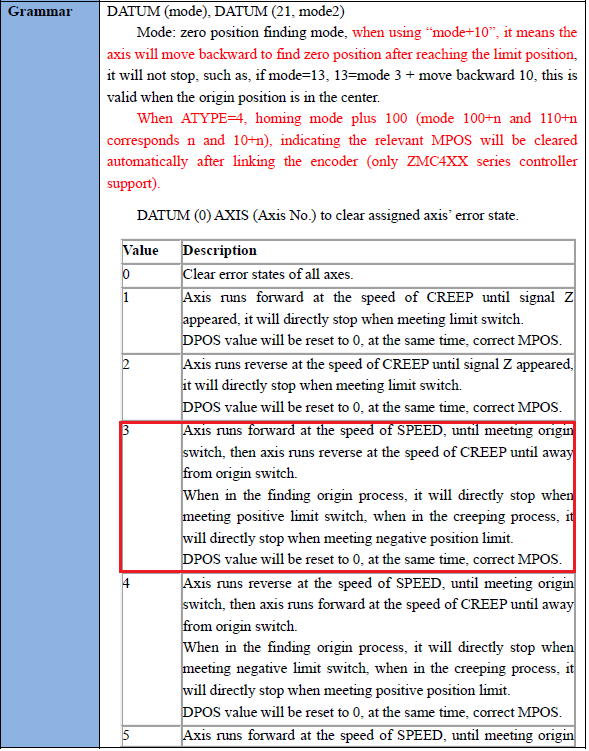
The main command is “ DATUM” (specific information can be known from RTBasic Programming Manual).

Corresponding C# Command: ZAux_Direct_Single_Datum

ZAux_Direct_Single_Datum (handle, iaxis, imode)

handle

Connection handle

iaxis

Axis No.

imode

Homing modes

l    mode 1-9 (see manual / DATUM command): it will stop when meeting the position limit

l    mode 11-mode 19: on the basis of mode 1-mode 9, it will inversely find after meeting the position imit.

For details, please refer to Zmotion PC Programming Manual.

Download Add.: https://www.zmotionglobal.com/download_list_17.html

Contact Us: https://www.zmotionglobal.com/contactus.html

Including the C# library file. How to call the PC library file, please review lesson 2 .

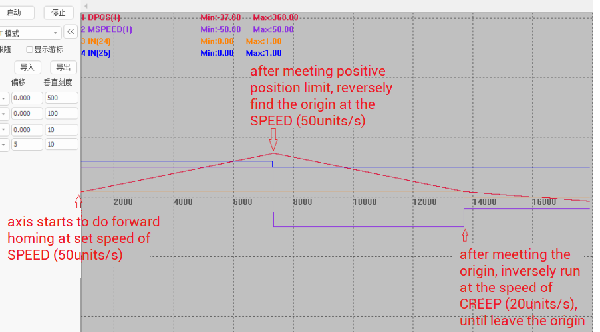
 --Example: mode 13--

It needs to set origin switch, position limit switch, homing speed (SPEED), and creeping speed (CREEP).

Under this mode, while homing, the axis  runs forward at the speed of SPEED. When met the position limit switch, it will  reversely find the origin. After that,  running inversely at the speed of CREEP, until  left the origin.

3.png

//read basic program customized variables -- bus initialization's total axes
zmcaux.ZAux_Direct_GetUserVar(g_handle, "Bus_TotalAxisnum", ref EcatAxisNum);
//read basic program customized variables -- bus initialization's bus starting axis No.
zmcaux.ZAux_Direct_GetUserVar(g_handle, "Bus_AxisStart", ref EcatStartAxisNum);
//read basic program customized variables -- bus initialization's initialization state
zmcaux.ZAux_Direct_GetUserVar(g_handle, "Bus_InitStatus", ref EcatInitStatus);


B.      
Drive Homing

You also can use drive homing modes. Please check corresponding drive manual . Then select drive supported homing modes (data dictionary 6098), setting its parameters (homing high-speed, homing low-speed, etc.).

ZAux_BusCmd_Datum (handle, iaxis, Homemode)

handle

Connection   handle

iaxis

Axis No.

imode

Drive homing   mode, please check drive manual.


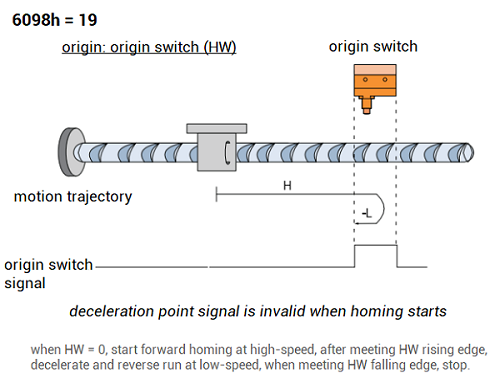
Ø  Set drive homing method (6098h),   default value 0 means drive current homing modes is used.

Ø   Drive 6099h, 609Ah will be   automatically set by multiplying axis SPEED, CREEP, ACCEL, DECEL and UNITS.

Ø   Action Sequence: 6098 homing mode –   6099 speed – 609A acceleration – 6060 current mode switching.

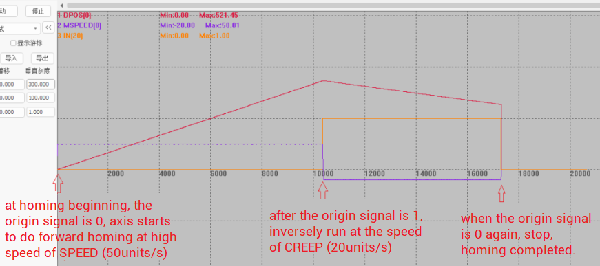
--Example: mode 19--

The  origin switch (HW) is  0 , it starts to do  homing forward at the configured homing high-speed SPEED (50units/s). After meeting  origin switch (HW) 1 creeping inversely at the speed of homing low-speed CREEP (20units/s), until the  origin switch (HW) is  0 again, the machine stops, homing completes.

4.png

//configure controller homing parameters
private void Controllers_DatumPara_Button_Click(object sender, EventArgs e)
{
    if (g_handle == (IntPtr)0)
    {
        MessageBox.Show("Controller Unconnected!", "Note");
    }
    else
    {
        //set axis basic parameters, controller homing speed is SPEED
        AxisParaSet();
        int[] ret = new int[7];
        //set homing's creeping speed
        ret[0] = zmcaux.ZAux_Direct_SetCreep(g_handle, MoveAxis, Convert.ToSingle(Datum_Creep_Value.Text));
        //set origin signal. For ZMC controllers, it is valid when OFF, if the sensor is normally-ON, please invert IN as ON
        ret[1] = zmcaux.ZAux_Direct_SetDatumIn(g_handle, MoveAxis, Convert.ToInt32(DatumIO_Value.Text));
        ret[2] = zmcaux.ZAux_Direct_SetInvertIn(g_handle, Convert.ToInt32(DatumIO_Value.Text), 1);
        //set IO positive position limit
        ret[3] = zmcaux.ZAux_Direct_SetFwdIn(g_handle, MoveAxis, Convert.ToInt32(FWD_IO_Value.Text));
        ret[4] = zmcaux.ZAux_Direct_SetInvertIn(g_handle, Convert.ToInt32(FWD_IO_Value.Text), 1);
        //set IO negative position limit
        ret[5] = zmcaux.ZAux_Direct_SetRevIn(g_handle, MoveAxis, Convert.ToInt32(REV_IO_Value.Text));
        ret[6] = zmcaux.ZAux_Direct_SetInvertIn(g_handle, Convert.ToInt32(REV_IO_Value.Text), 1);
        //set controller homing mode
        Controllers_DatumMode = Convert.ToInt32(Controllers_DatumMode_Value.Text);
        //define tempoaray variables to record each function's returned value
        int FinalRet = -1;
        for(int i = 0; i < 7; ++i)
        {
            FinalRet *= ret[i];
        }
        if (FinalRet == 0)  //returned value 0 means parameters coonfiguration succeeded
        {
            MessageBox.Show("Controller Homing Parameters Config Succeeded!", "Note");
        }
        else
        {
            MessageBox.Show("Controller Homing Parameters Config Failed!", "Note");
        }
    }


( ZMOTION )
Homing  Steps with  One C# Example

(1)    C# Homing Routine Introduction

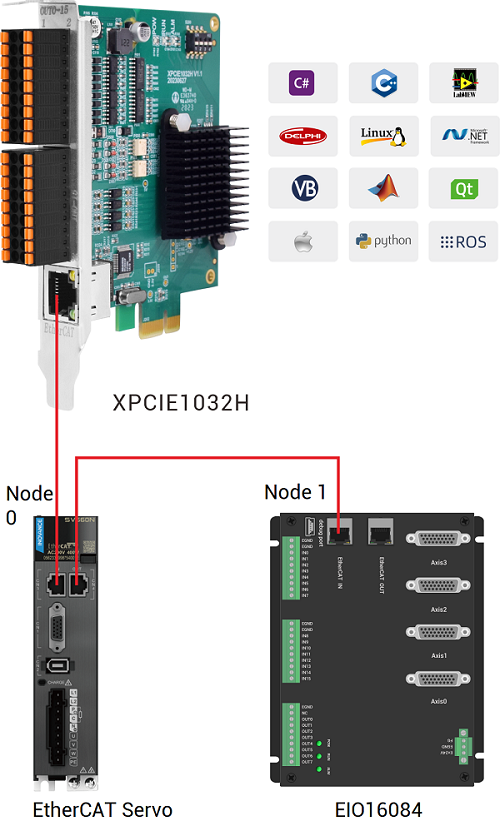
Here, we use our Zmotion XPCIE1032H motion control card (+ MotionRT7) to control one EtherCAT drive (axis 0), also expanding IO by Zmotion EtherCAT expansion module EIO16084 (node 1), its extended 4 pulse axes (axis 1 – axis 4) are mapped into EtherCAT axes.
5.png

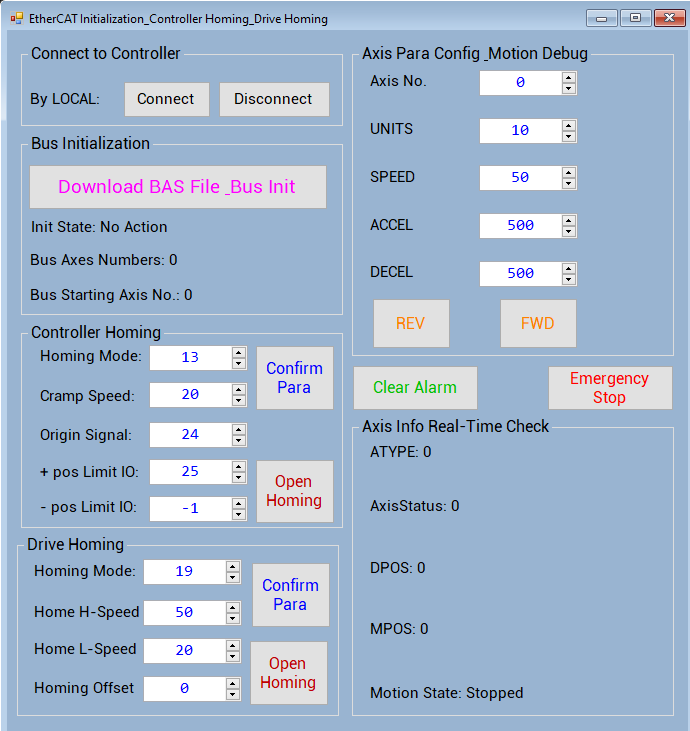
(2)    C# Homing Routine UI

6.png

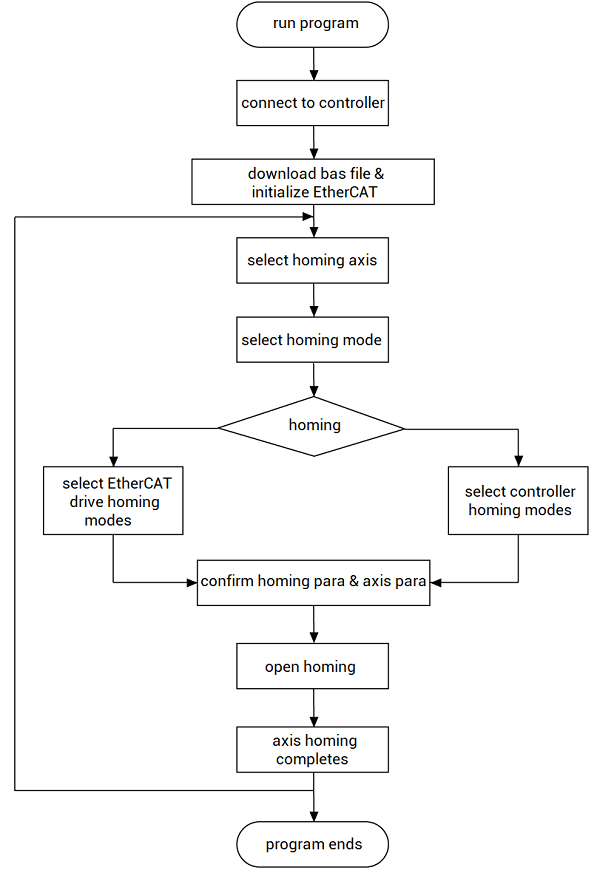
(3)    Homing Steps of C# Routine

7.png

Step 1: Controller Connect

Use  “ZAux_FastOpen” connect to XPCIE1032H by LOCAL.

Step 2: EtherCAT Initialization

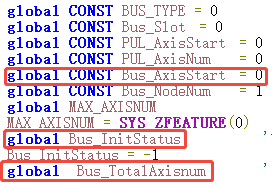
At first, get Zmotion ECAT_INIT basic program from website (lesson 3 theme is EtherCAT initialization), then set several variables according to real situation, like, how many EtherCAT axes, how many pulse axes, how many drives, etc.

Then, download the ECAT_INT into C# for initialization. While executing the initialization, use  “ZAux_Direct_GetUserVar” to read basic program customized variables.

--ECAT_INIT Basic File--
8.png

--C# Codes of Reading Basic Init Information--

The timer is used to get real-time EtherCAT axis numbers, EtherCAT starting axis No., initialization state, etc.

//open controller homing
private void Controllers_Datum_Button_Click(object sender, EventArgs e)
{
    if (g_handle == (IntPtr)0)
    {
        MessageBox.Show("Controller Unconnected!", "Note");
        return;
    }
    int ret = -1;
    //Trigger oscilloscope
    zmcaux.ZAux_Trigger(g_handle);
    //Controller Homing
    ret = zmcaux.ZAux_Direct_Single_Datum(g_handle, MoveAxis, Controllers_DatumMode);
    if(ret != 0)
    {
        MessageBox.Show("Controller Homing ON Failed!", "Note");
    }
    else
    {
        MessageBox.Show("Controller Homing ON Succeeded!", "Note");
    }
}


Step 3: Homing Methods & Modes Configuration

A.   Controller Homing

Command:  ZAux_Direct_Single_Datum (handle, axis No., controller homing modes)

Here, use mode 13, which was mentioned above.

a.      select homing axis No.

b.      select homing modes

c.      set parameters

d.      press “confirm para” button

e.      press “open homing” button

Then, it will do homing according to controller homing parameters.

//set drive homing parameters
private void Drivers_DatumPara_Button_Click(object sender, EventArgs e)
{
    if (g_handle == (IntPtr)0)
    {
        MessageBox.Show("Controller Unconnected!", "Note");
        return;
    }
    int ret1, ret2, ret3;
    //set drive homing high-speed
    ret1 = zmcaux.ZAux_Direct_SetSpeed(g_handle, MoveAxis, Convert.ToSingle(Datum_HighSpeed_Value.Text));
    //set drive homing low-speed
    ret2 = zmcaux.ZAux_Direct_SetCreep(g_handle, MoveAxis, Convert.ToSingle(Datum_LowSpeed_Value.Text));
    //set drive homing offset
    ret3 = zmcaux.ZAux_BusCmd_SetDatumOffpos(g_handle, (uint)MoveAxis, Convert.ToSingle(Datum_OffSet_Value.Text));
    //set drive homing mode
    Drivers_DatumMode = Convert.ToInt32(Drivers_DatumMode_Value.Text);
    if (ret1 == 0 && ret2 == 0 && ret3 == 0)
    {
        MessageBox.Show("Drive Homing Parameters Config Succeeded!", "Note");
    }
    else
    {
        MessageBox.Show("Drive Homing Parameters Config Failed!", "Note");
    }
}


B.      Drive Homing

Command: ZAux_BusCmd_Datum (handle, axis No., drive homing modes)

Same steps as above controller homing modes.

Then, it will do homing according to drive homing parameters.

//open drive homing
private void Drivers_Datum_Button_Click(object sender, EventArgs e)
{
    if (g_handle == (IntPtr)0)
    {
        MessageBox.Show("Controller Unconnected!", "Note");
        return;
    }
    int ret = -1;
    //Trigger oscilloscope
    zmcaux.ZAux_Trigger(g_handle);
    //drive homing
    ret = zmcaux.ZAux_BusCmd_Datum(g_handle, (uint)MoveAxis, (uint)Drivers_DatumMode);
    if (ret != 0)
    {
        MessageBox.Show("Drive Homing ON Failed!", "Note");
    }
    else
    {
        MessageBox.Show("Drive Homing ON Succeeded!", "Note");
    }
}



( ZMOTION )
Homing  Running Effect of the C# Example

Before C# running, we can open RTSys software at the same time (lesson 6 shows you how to use RTSys help C# debug).

At the beginning, do connection by LOCAL.

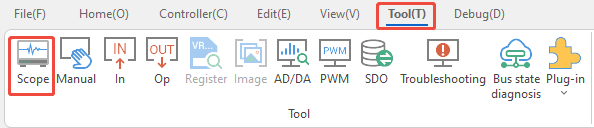
Then, open the debugging tool “SCOPE” select needed data and axis No. click start click open homing button in C# click manual trigger of RTSys scope . Then, it will capture data.

9.png

A.      Effect of  Controller Homing Mode 13

10.png

B.      Effect of  Drive Homing Mode 19

11.png

Copyright © 2013-2024 Shenzhen Zmotion Technology Co.,Ltd Design by Zmotion    粤ICP备13037187号 Motion Controller-Motion Control Card

Contact Us-Youtube