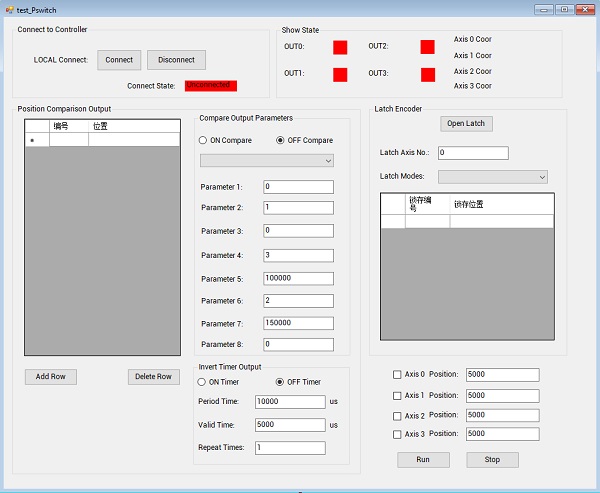
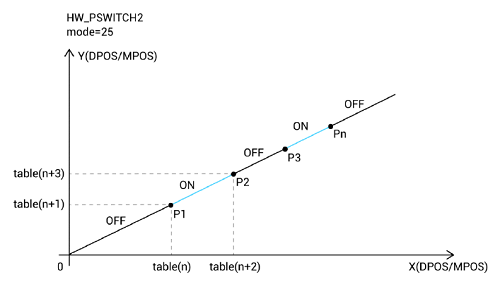
Step 1: specify controller’s high-speed output port.
Step 2: set the first comparison point’s output state.
Step 3: set which axis to do comparison.
Step 4: set comparison points into
TABLE
register.
Step 5: set comparison points’
pulse max error
.
Step 6: open comparison.
Step 7: move axis.
--C# Configurations--
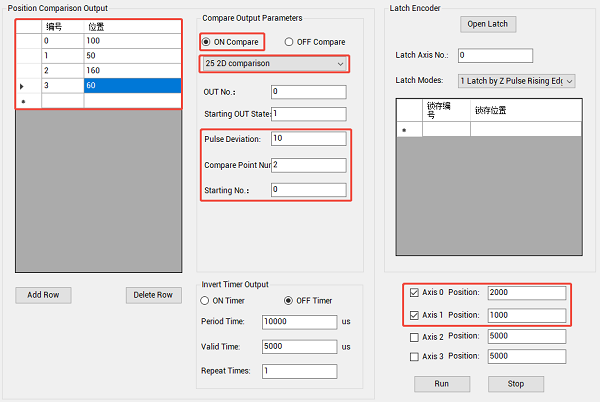
Set OUT0, the first point’s output state is 1 (ON), and comparison axes are 0 and 1.
2 comparison points (100, 50), and (160, 80) here.
That is, when the axis arrives these two positions, and when the error range is within ±10 pulses, triggering level to invert once.
--SCOPE Data Showing--
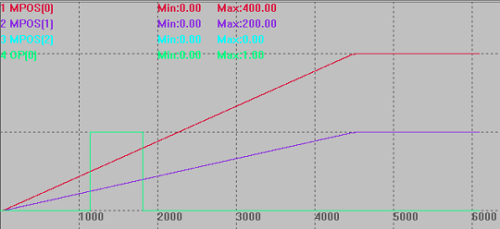
It can be seen it outputs 1 (open the output) when at (100, 50), then resumes as 0 (close the output) when at (160, 80).
*RTSys is Zmotion own free IDE debugging tool. It can help debug C# programs. You can check corresponding article (
lesson 6
)*
(2)
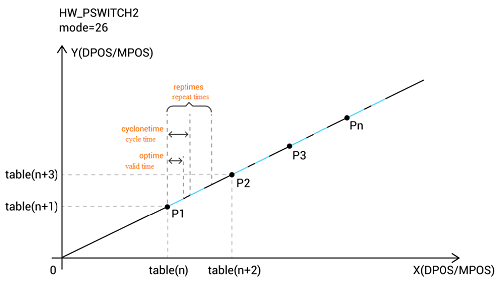
Mode 26: 2D Multi-Axis Comparison with Timer
A.
How to Set
Steps are basically same as mode 25.
The difference is this mode is used together with
HW_TIMER timer command, after setting 2D comparison points (step 4 in mode 25), then:
Step 5: set
pulse valid time, pulse period time, and pulses
(repeat times),
Step 6: set comparison points’ pulse max error.
……
--C# Configurations--
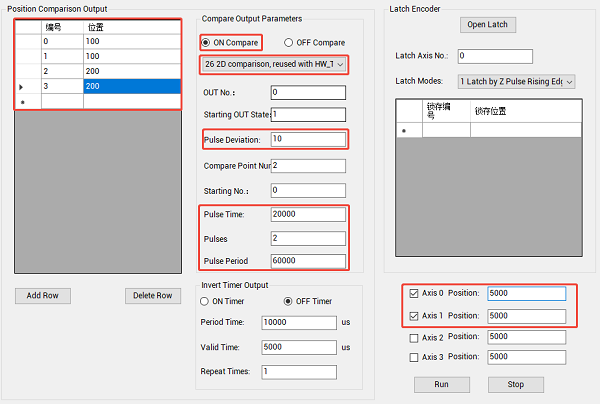
Set OUT0, the first point’s output state is 1 (ON), and comparison axes are 0 and 1.
2 comparison points (100, 100), and (200, 200) here.
That is, when the axis arrives these two positions, and when the error range is within ±10 pulses, it will trigger pulses with time of 20ms, whose the period is 60ms.
--SCOPE Data Showing--
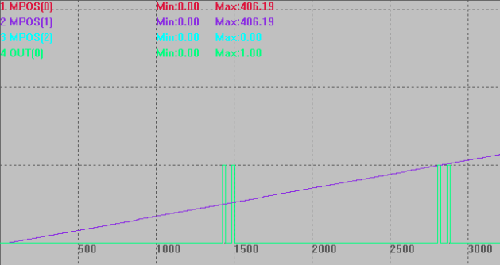
PSO
3D Modes Description & Running Effect
(1) Mode 35: 3D Multi-Axis Comparison
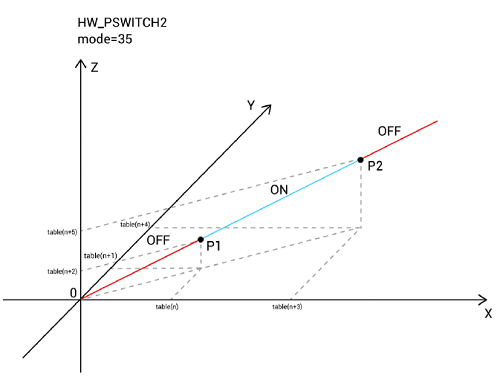
Steps are totally same as mode 25 2D comparison.
But please note 3 comparison axes should be set, and comparison points should be 3D coordinates.
--C# Configurations--
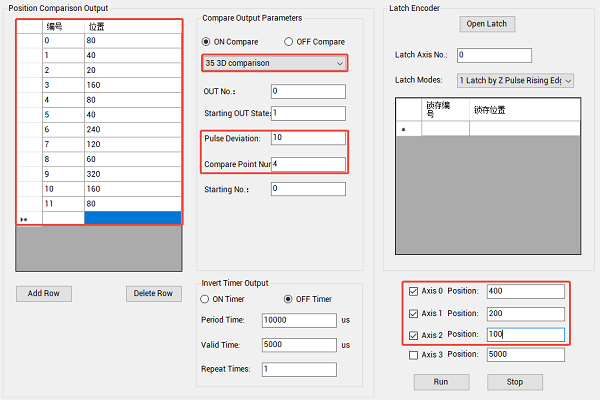
Set OUT0, the first point’s output state is 1 (ON), and comparison axes are 0, 1, 2.
4 comparison points (80, 40. 20), (160, 80, 40), (240, 120, 60), and (320, 160, 80).
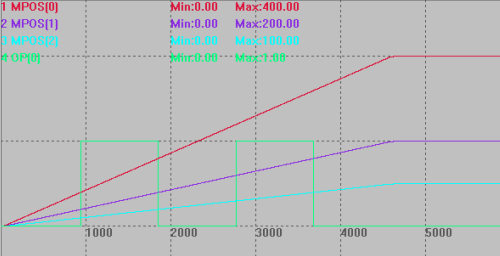
That is, when the axis arrives these 4 positions, and when the error range is within ±10 pulses, triggering level to invert once.
--SCOPE Data Showing--
(2)
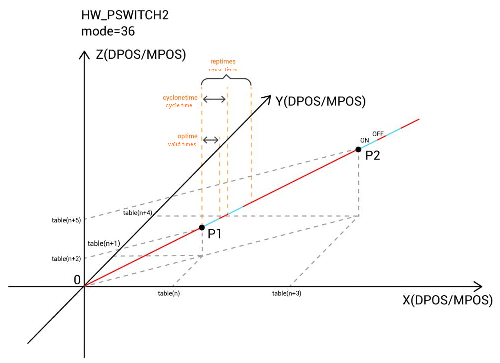
Mode 36: 3D Multi-Axis Comparison with Timer
A.
How to Set
Steps are totally same as mode 26 2D comparison.
But please note 3 comparison axes should be set, and comparison points should be 3D coordinates.
--C# Configurations--
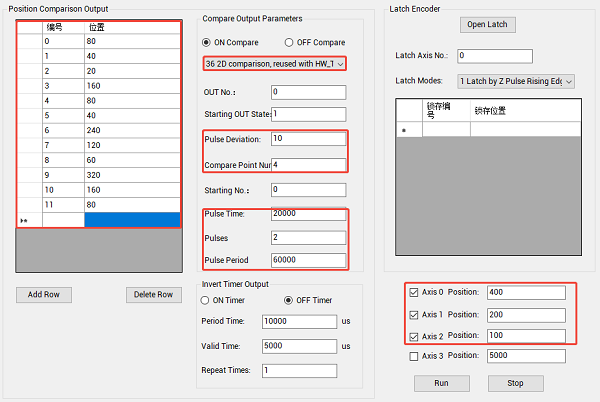
Set OUT0, the first point’s output state is 1 (ON), and comparison axes are 0, 1, 2.
4 comparison points (80, 40. 20), (160, 80, 40), (240, 120, 60), and (320, 160, 80).
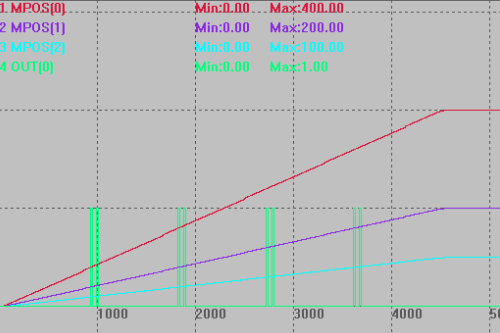
That is, when the axis arrives these 4 positions, and when the error range is within ±10 pulses, it will trigger pulses with time of 20ms, whose the period is 60ms.
--SCOPE Data Showing--
PSO 2D / 3D PSO Core C# Codesint ZAux_Direct_HwPswitch2_2D()
{
string cmdbuff="";
string tempbuff = "";
StringBuilder cmdbuffAck = new StringBuilder();
//generate the command
switch (PsoMode)
{
case 7:
tempbuff = String.Format("HW_PSWITCH2({0},{1},{2},{3},{4},{5},{6},{7})", PsoMode, ModePara1, ModePara2, ModePara3, ModePara4, ModePara5, ModePara6, ModePara7);
break;
case 25:
tempbuff = String.Format("HW_PSWITCH2({0},{1},{2},{3},{4},{5})", PsoMode, ModePara1, ModePara2, ModePara3, ModePara4, ModePara5); break;
case 26:
tempbuff = String.Format("HW_PSWITCH2({0},{1},{2},{3},{4},{5},{6},{7},{8})", PsoMode, ModePara1, ModePara2, ModePara3, ModePara4, ModePara5, ModePara6, ModePara7, ModePara8);
break;
case 35:
tempbuff = String.Format("HW_PSWITCH2({0},{1},{2},{3},{4},{5})", PsoMode, ModePara1, ModePara2, ModePara3, ModePara4, ModePara5); break;
case 36:
tempbuff = String.Format("HW_PSWITCH2({0},{1},{2},{3},{4},{5},{6},{7},{8})", PsoMode, ModePara1, ModePara2, ModePara3, ModePara4, ModePara5, ModePara6, ModePara7, ModePara8);
break;
}
//call command to execute the function
int ret = zmcaux.ZAux_Execute(g_handle, tempbuff, cmdbuffAck, 2048);
if (cmdbuffAck.Length != 0)
MessageBox.Show(cmdbuff, "Note");
return ret;
}